You’ll now be loaded into your campaign with a view of the Map Browser and a message saying, "Add a map from a Source to get started."
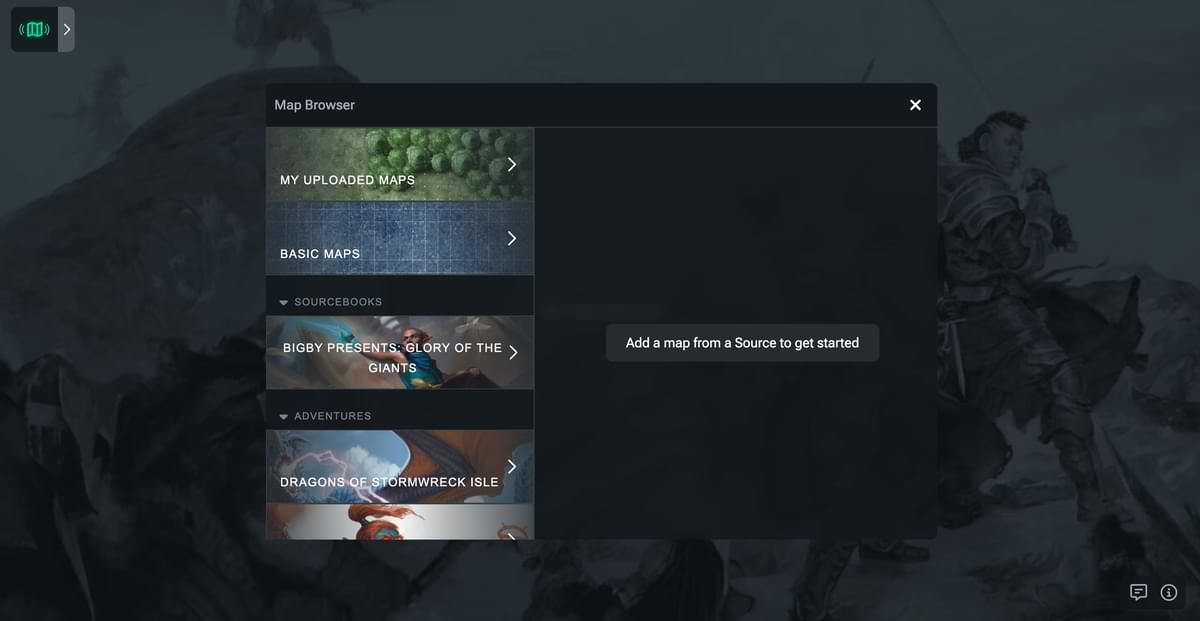
The first two options on the left are “My Uploaded Maps” (we’ll get to that later, don’t worry) and “Basic Maps.” Basic maps are generic maps that can be used for a variety of scenarios, so we’ll be using these further on in this tutorial.
You’ll also see “Sourcebooks,” and, after that, “Adventures.” These two categories are where all the premade maps from the books you own on D&D Beyond will live. Future digital and physical products will launch with their maps already configured for use here, and books released previously will be added over time, so expect to see this list grow.
To start, let’s add a basic map, so click that category. You’ll see the right-hand panel populated with a list of maps. Add the “Grass Field” map by clicking the “+” sign to the right.
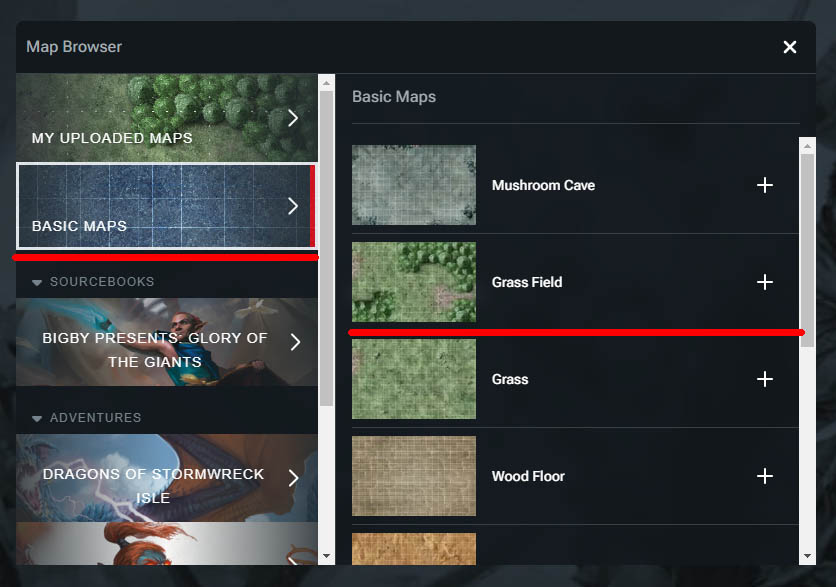
In the bottom left of the screen, you’ll see the message, “Added ‘Grass Fields’ to the map list,” but not much else. This is because while the map has been added to the list, we still need to select that map to view it. Click the “X” in the top right corner to close the Map Browser, then click the down arrow next to “Select Map” to open the dropdown.
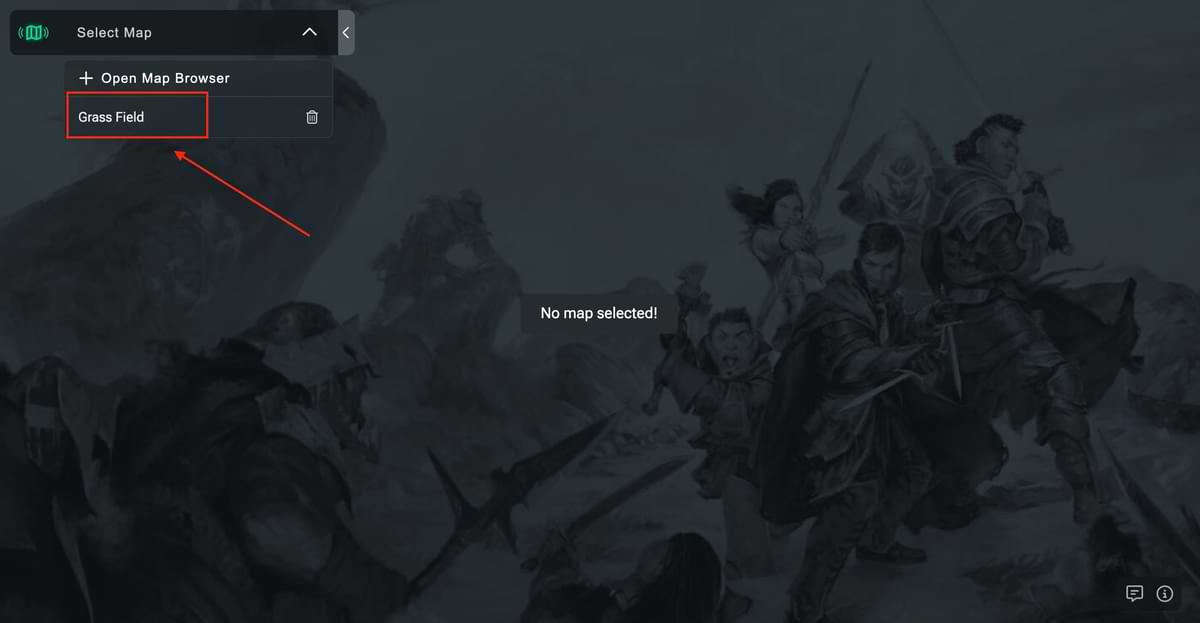
Now you’ll see the “Grass Field” map listed, with a trash can icon to the right. You can click this icon to remove a map from your list, but for now, let’s select the map by clicking its name. You will now be looking at your first map!

If you want to add more maps, you can repeat the above steps, and they’ll be added to your map list. You can switch between maps at any time by expanding the map list and clicking the map's name.
Related to