So you’ve got a map with some tokens, the next step is navigating the map. From the list of three buttons, select the Pan feature, the first button with the hand icon. Alternatively, you can press the “H” key on your keyboard. With this feature selected, you can do two things:
- Click and drag to move around the map
- Click and drag to move tokens around the map
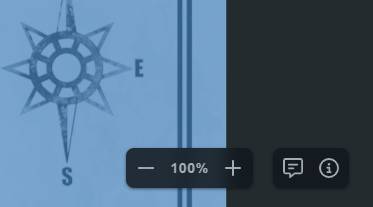
You can also use the mouse wheel to zoom in and out, but this function is accessible regardless of what feature you have selected. Additionally, you’ll find a zoom control in the bottom right that displays a "+" and "-" icon to zoom in and out, respectively, as well as your current zoom level.
Navigating Maps and Moving Tokens on Mobile
Navigating maps on mobile devices works pretty much as you would expect. Press and hold on an area of the map, then move your finger to drag the map around and pinch to zoom in and out. Tokens can be tapped to select them, and then dragged in the same way you can drag the map.
As a reminder, Maps functionality on mobile is still in development, so your experience may not be ideal!
Related to