As a DM, you may want to limit how much of the map the players can see at any given time. This is where the Fog of War feature comes in. To open the menu for Fog of War, click the cloud icon, or press "F" on your keyboard. As long as this feature is selected, you’ll see six options: "Cover All," "Reveal All," a paint roller icon, an erase icon, your current brush shape, and current brush size.
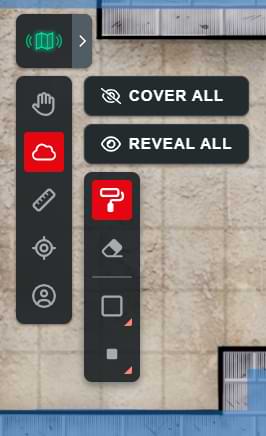
The first two options will cover the entire map in fog of war and clear the entire map, respectively. As long as an area is covered by fog of war, your players won’t be able to see that part of the map, but you will. The third icon lets you selectively paint fog of war on an area of the map, and the fourth icon lets you remove it.
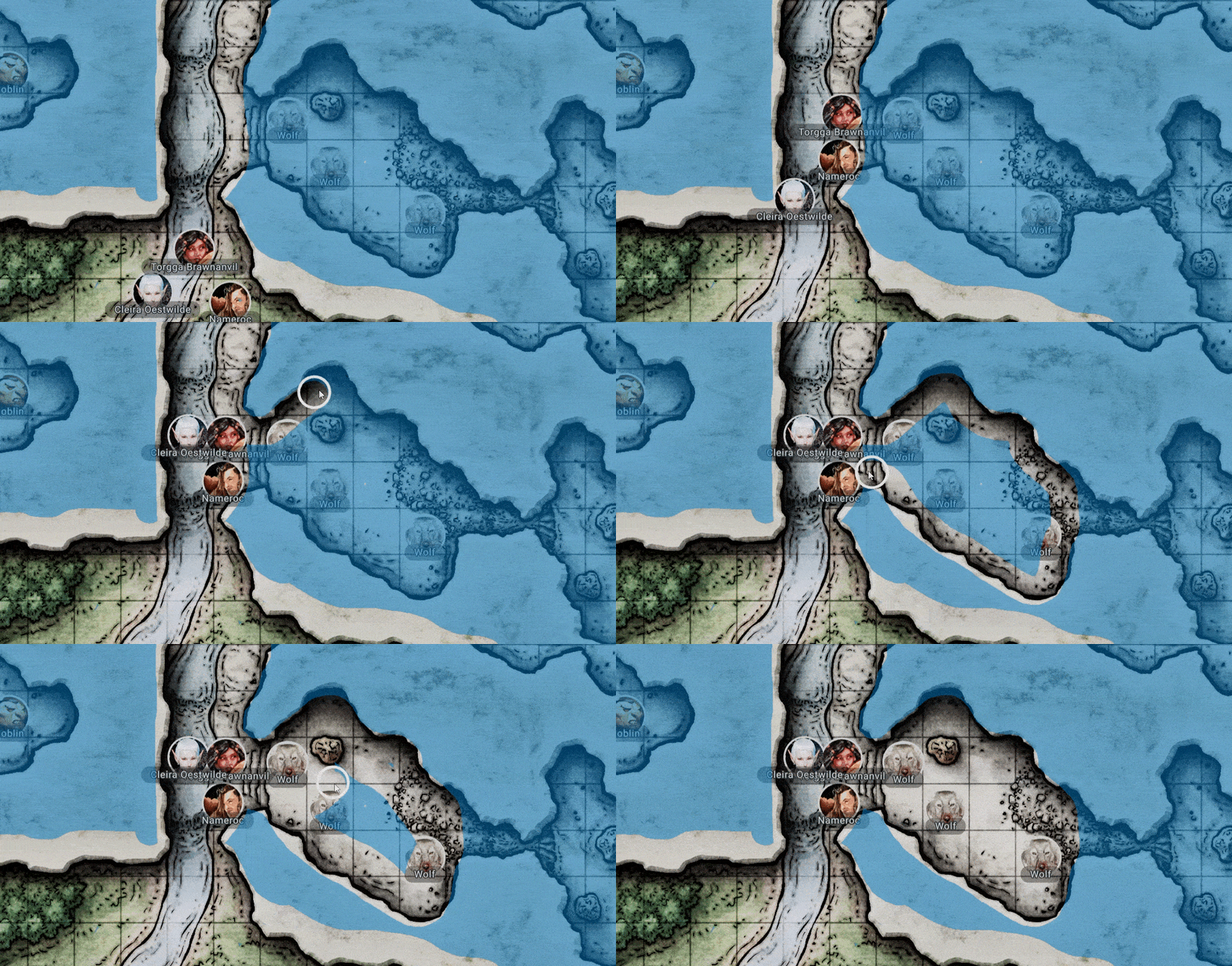
Let’s apply some fog of war to the Cragmaw Hideout map we uploaded previously. As the players enter, they can only see the tunnel straight ahead of them. First, I use the “Cover All” button to fill in the whole map and save me some time. Then, I select the erase icon and reveal what I think the character should be able to initially see.
When the players move so they can see another room, I can use the eraser to reveal more areas of the map for my players to see, or the paint roller to obscure more areas should they lose line of sight.
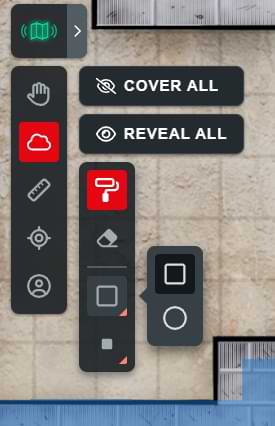
The last two options allow you to adjust the shape and size of the Fog of War brush to suit the area you want to conceal or reveal.
The shape feature allows you to select between a circular and square brush; the circular brush is great for fine detail while the square brush is perfect for grid-based maps.
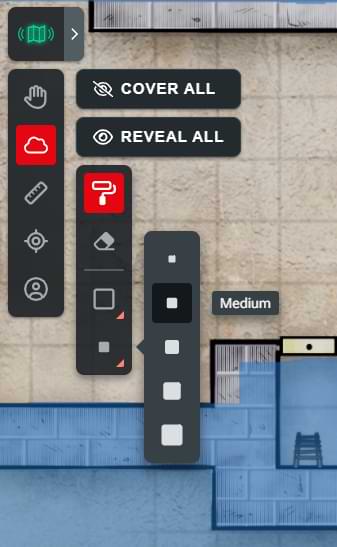
The final option controls the size from tiny to gargantuan. These sizes conveniently correspond to size categories as described in the rules. So for example, if you want to reveal the length of a 5-foot corridor, the medium size option will be perfect.
Using Fog of War on Mobile
When using the Fog of War feature on mobile, you can’t move the map around while you have the paint or erase features selected, so you’ll need to switch back to the Pan feature in order to zoom or pan the map. However, with the paint or erase feature active, you can simply draw with your finger where you want to add or remove fog of war.
Related to