Once you’ve placed tokens on the map, you and your players can begin controlling them. It’s important to note that, currently, anyone viewing a map can move any token on that map, so it is possible for players to move monsters and each other's tokens.
To move a token, make sure you don't have a feature selected, then click on a token so that its border turns red. The token will appear to lift up from the map. You’ll then be able to drag the token around, and the token toolbar will display above that token. Clicking anywhere else on the map will cause the red highlight ring and toolbar to disappear.
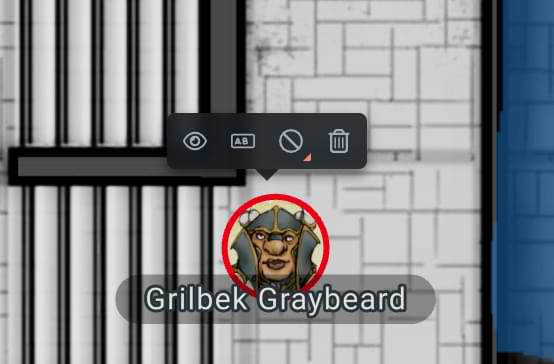
The Token Toolbar has four useful features:
- Hide/Reveal options
- Rename
- Border Color options
- Delete button
Hide/Reveal Options
The Hide/Reveal feature is accessible only by the Dungeon Master. It allows the DM to render a token hidden from the players or reveal that token. Clicking it causes the token to desaturate, and the eye icon displays with a line through it, indicating that the token is hidden. Clicking it again reveals the token.
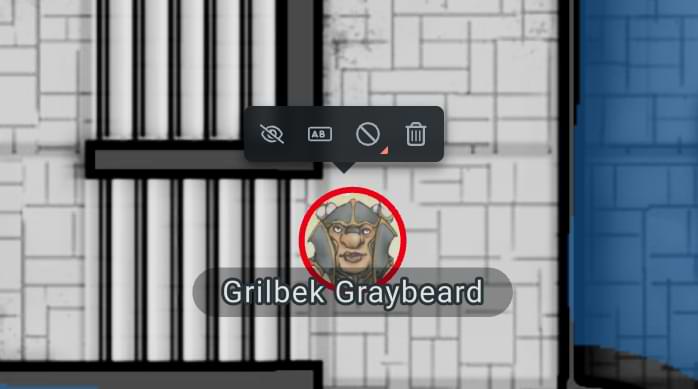
You can also toggle a token’s hidden/revealed state with the keyboard shortcut “Shift + H.”
Rename
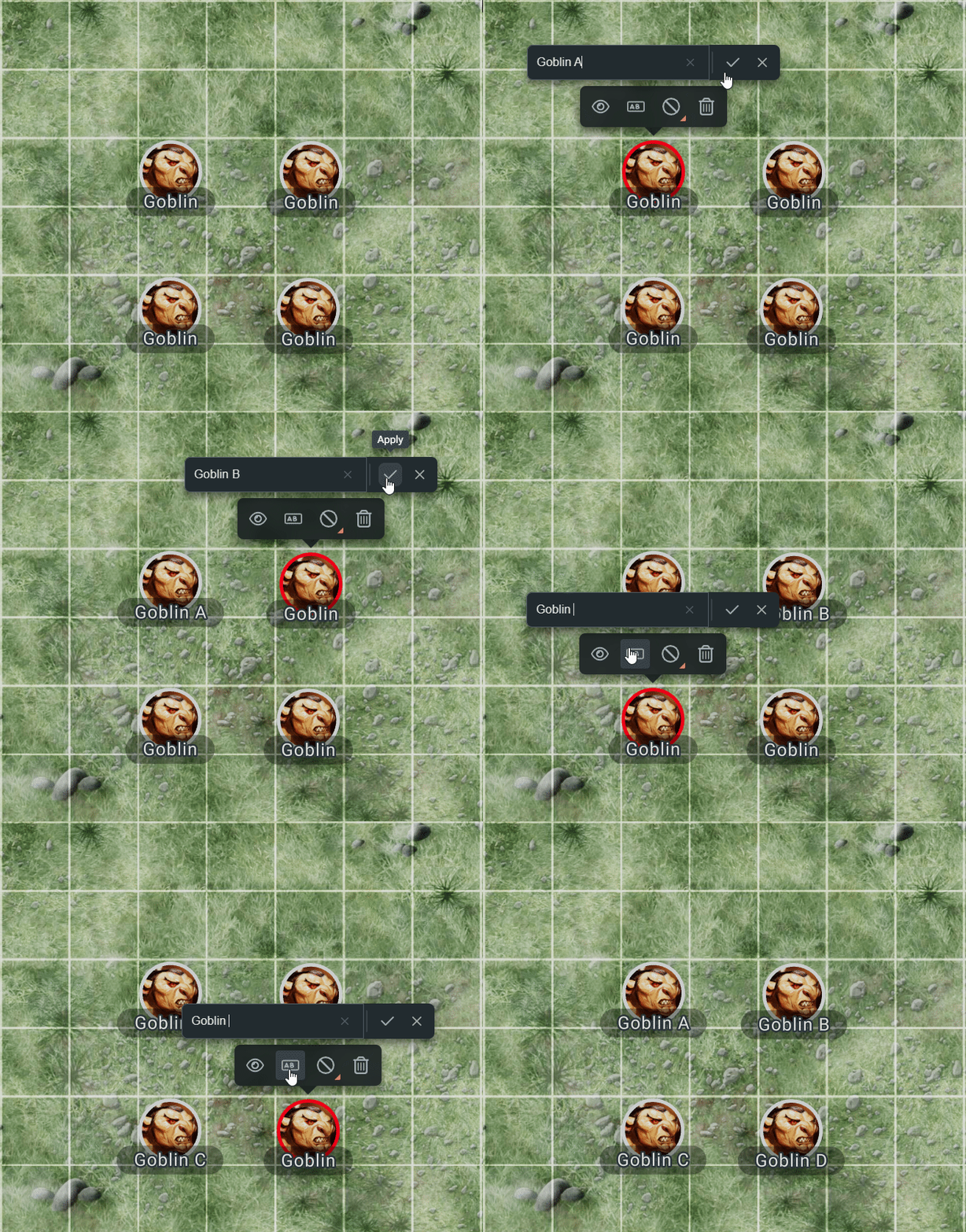
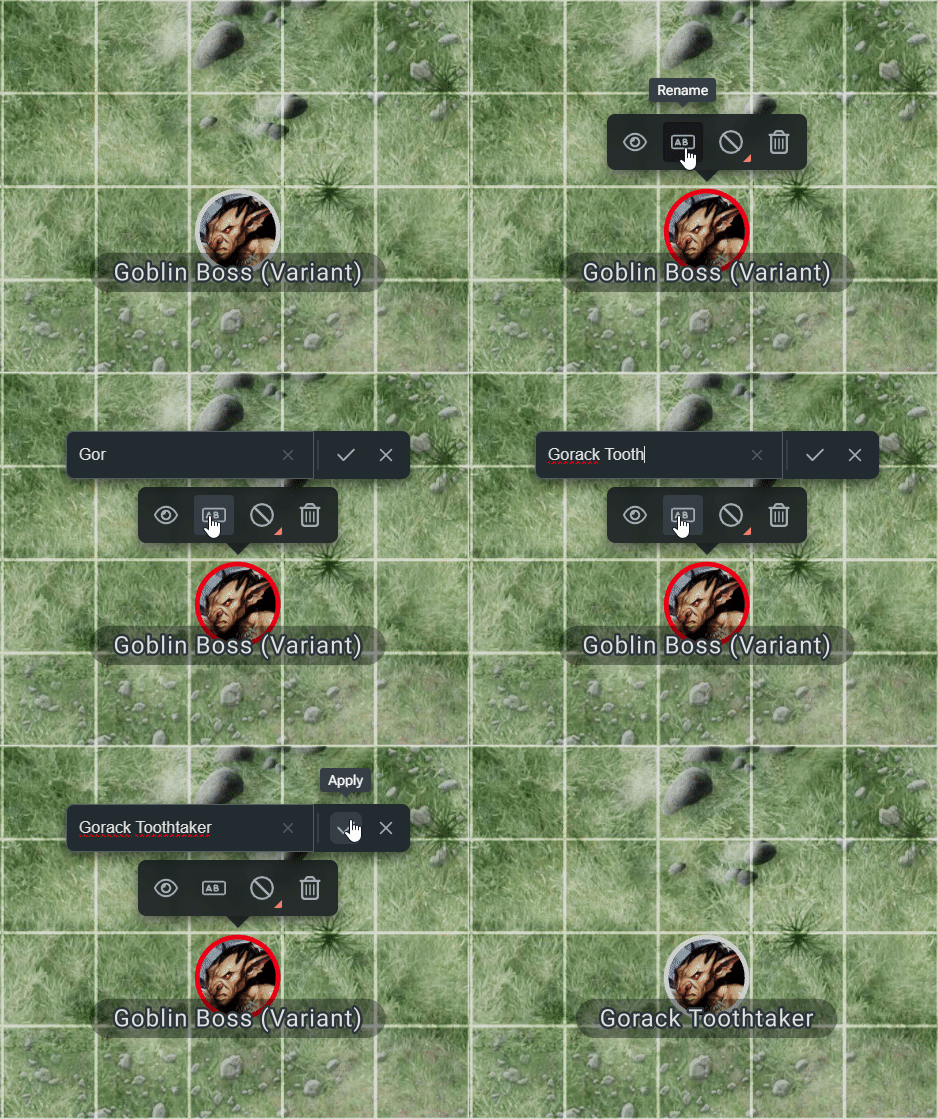
You can rename tokens by selecting the rename icon from the token toolbar. This will bring up a text input field.
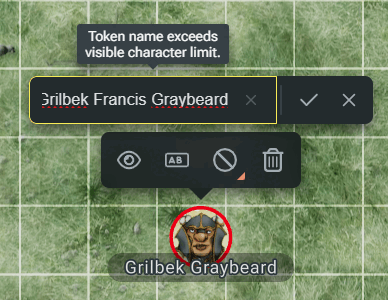
You can enter names up to 128 character long, but any name longer than 24 characters will be shortened on the map.

You can remove a custom name from a token by clicking the revert icon.
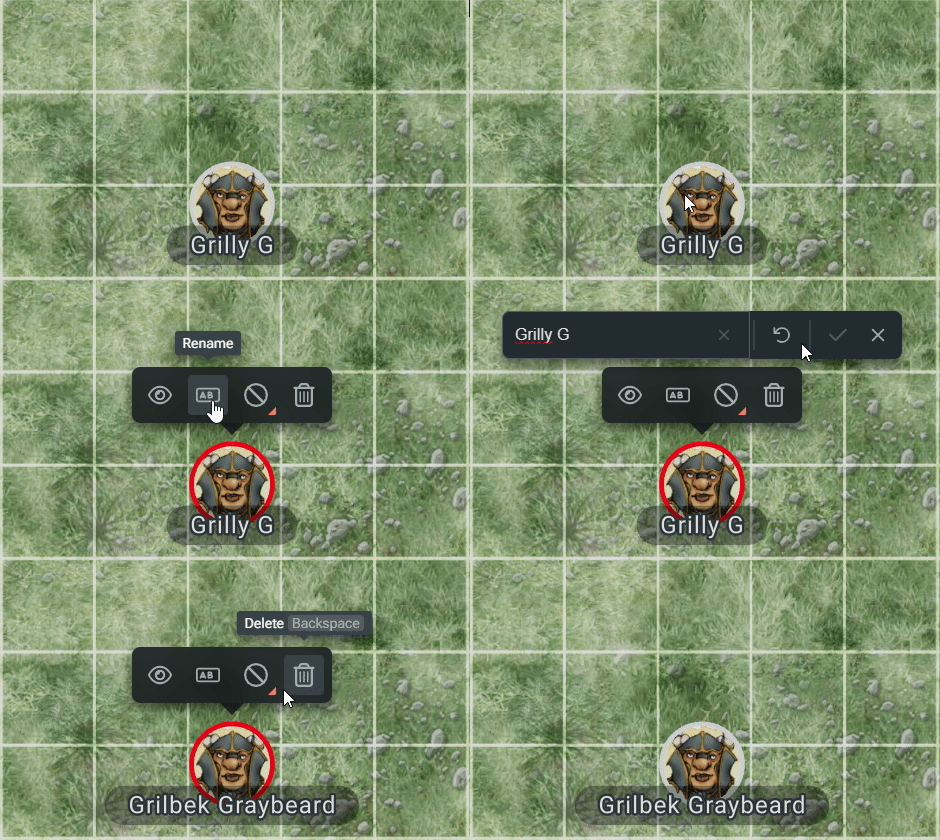
Renaming tokens can be great for giving your boss a custom name.
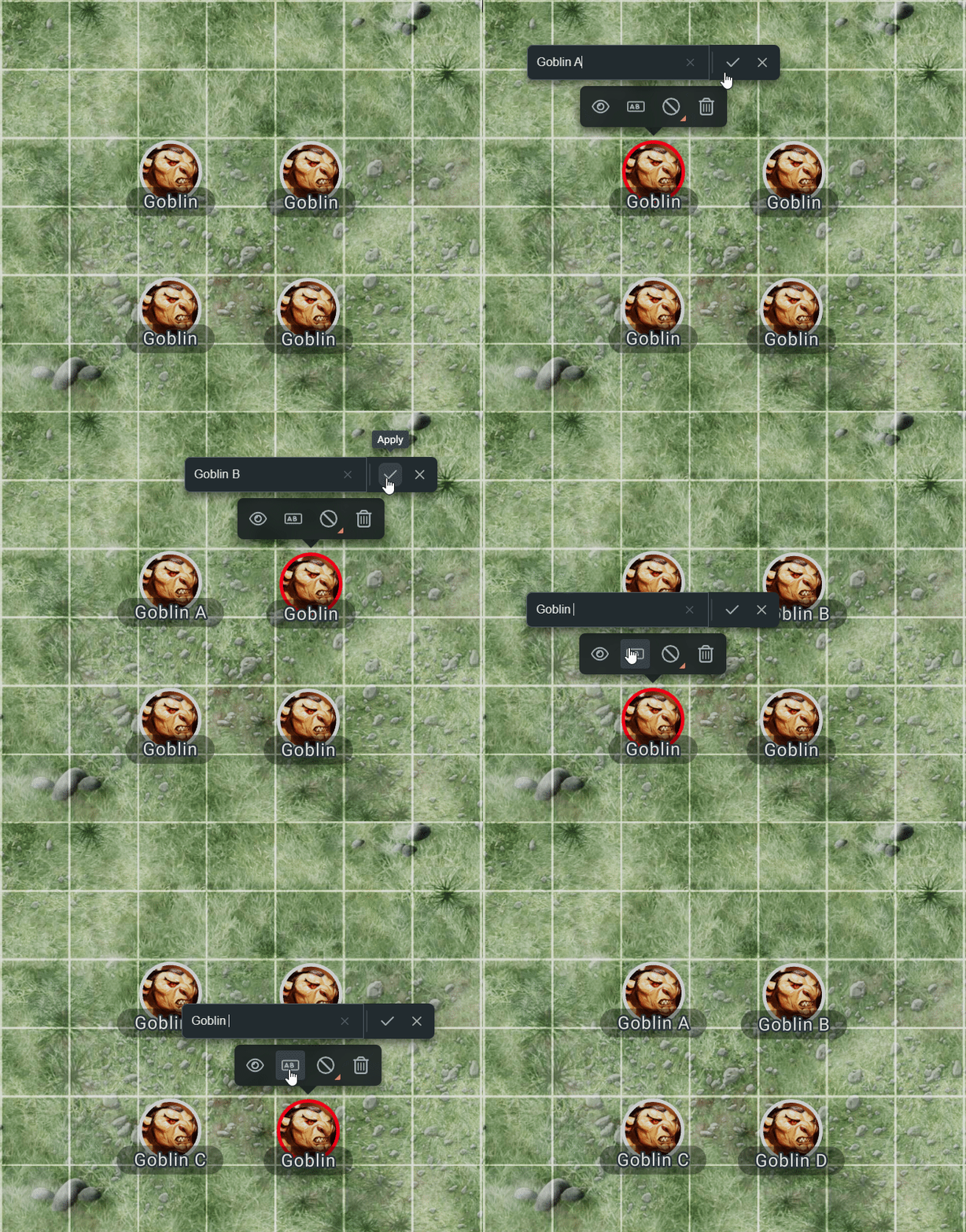
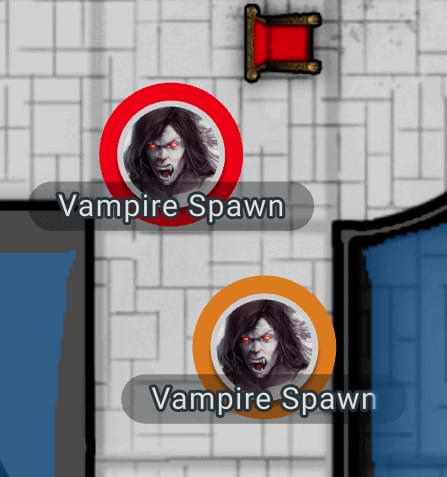
Or making those minions easier to tell apart.
Border Color Options
The Border Color feature allows a DM or player to place a colored ring around a token, enabling easier identification of that token. You can use this border color to differentiate between different tokens of the same monster type, conditions, or who controls a given token. To access the color picker for the Border Color feature, click the icon of a circle with a line through it, which indicates that no color has been applied.
This will bring up the color palette of border colors. Selecting any one of them will apply that color to the token.
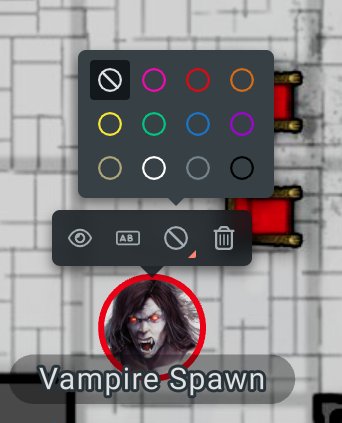
To remove a border color, open the picker again and click the circle with a line icon from the top left.
Delete Button
The Delete button adds a new way to remove tokens in addition to the “Delete” and “Backspace” keyboard shortcuts.
Related to