So we’ve got a map, but it’s not much use without some tokens, is it? You may notice that once you’re viewing a map in the VTT, three new buttons appear on the left side, below the map dropdown. We want the third button on that list, which is shaped like a figure with a circle around it—the Token Browser. You can access it by clicking it or pressing "V" on your keyboard.
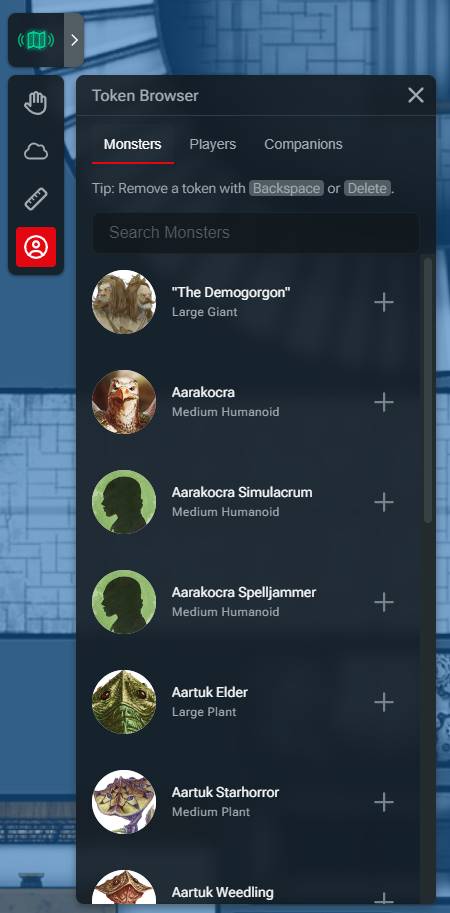
With the Token Browser open, you’ll see three tab options: “Monsters,” “Players,” and “Companions.” First, let’s add a monster. You’ll see a list of monsters with their official art along with their name, size, and creature type. You can even search monsters using the “Search” field. Let’s add some goblins.
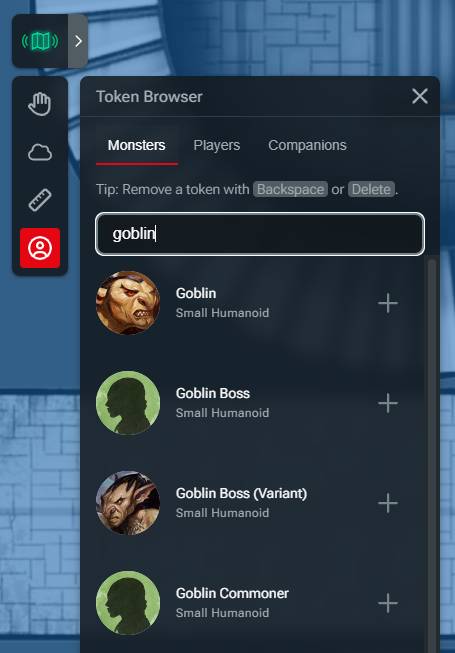
To the right of each monster, you’ll see a “+” icon, which you can click to add the token to the map. Let’s add three goblins and a goblin boss (variant). You’ll notice that each time you click the “+” button, a token will appear in an empty space, so you don’t have to worry about them stacking up on each other messily.
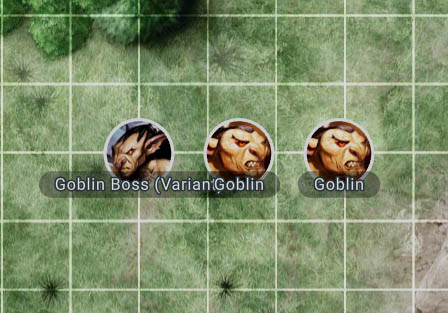
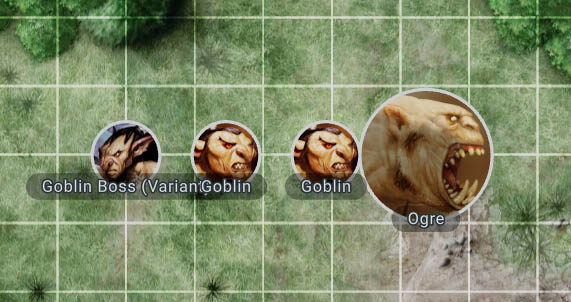
You’ll notice that the monsters display their names and are automatically set to the right size based on the scale of your map. If you add a large creature, say an ogre, it’ll be scaled to 2x2 squares automagically!
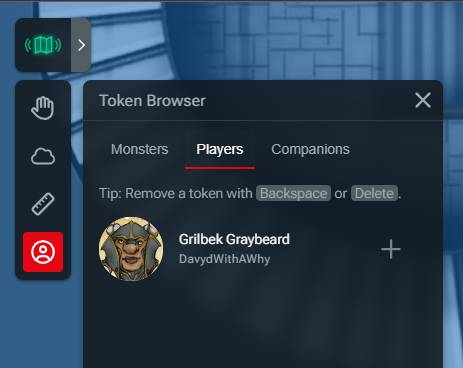
Now that you’ve added some enemies, it’s time to add the player characters. Navigate to the “Players” tab, where you’ll see all the characters currently in the campaign you selected. You’ll see the name of each character as well as the art they have selected on their character sheet.
Clicking the “+” button will add that player's token to the map. Once you’ve invited each player to the map, they’ll be able to control their own tokens and move them around within the VTT.
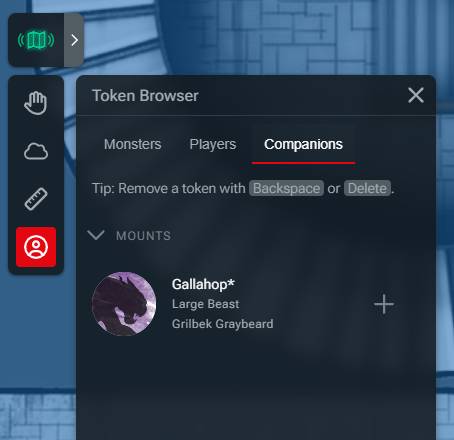
The “Companions” tab is the final option in the Token Browser and is where you’ll see any creatures that your players have added to the Extras section of their character sheet. Grilbek has a draft horse mount called Gallahop, so we’ll add them to the map as well by clicking the “+” icon.
You can close the Token Browser at any time using the “X” button in the top right.
Related to