You can build and run combat encounters within Maps. Combat encounters can be populated automatically based on the tokens present on the map, and once populated, it can be used to track Initiative.
To access the Combat Encounters menu, select the icon to the left of the Map Browser dropdown. This will open the Combat Encounter menu as a sidebar on the left side of your screen.
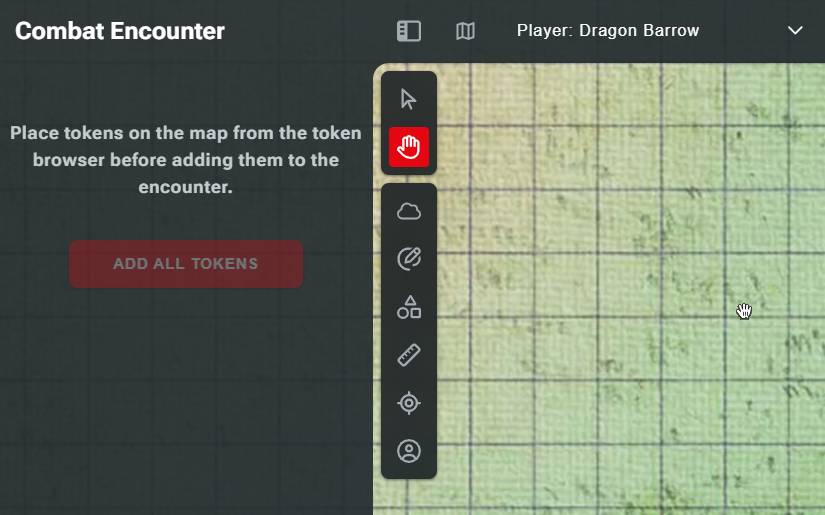
This menu will initially be empty, and the “Add All Tokens” button will be grayed out if there are no tokens on the map. To enable the button, place some tokens on your map.
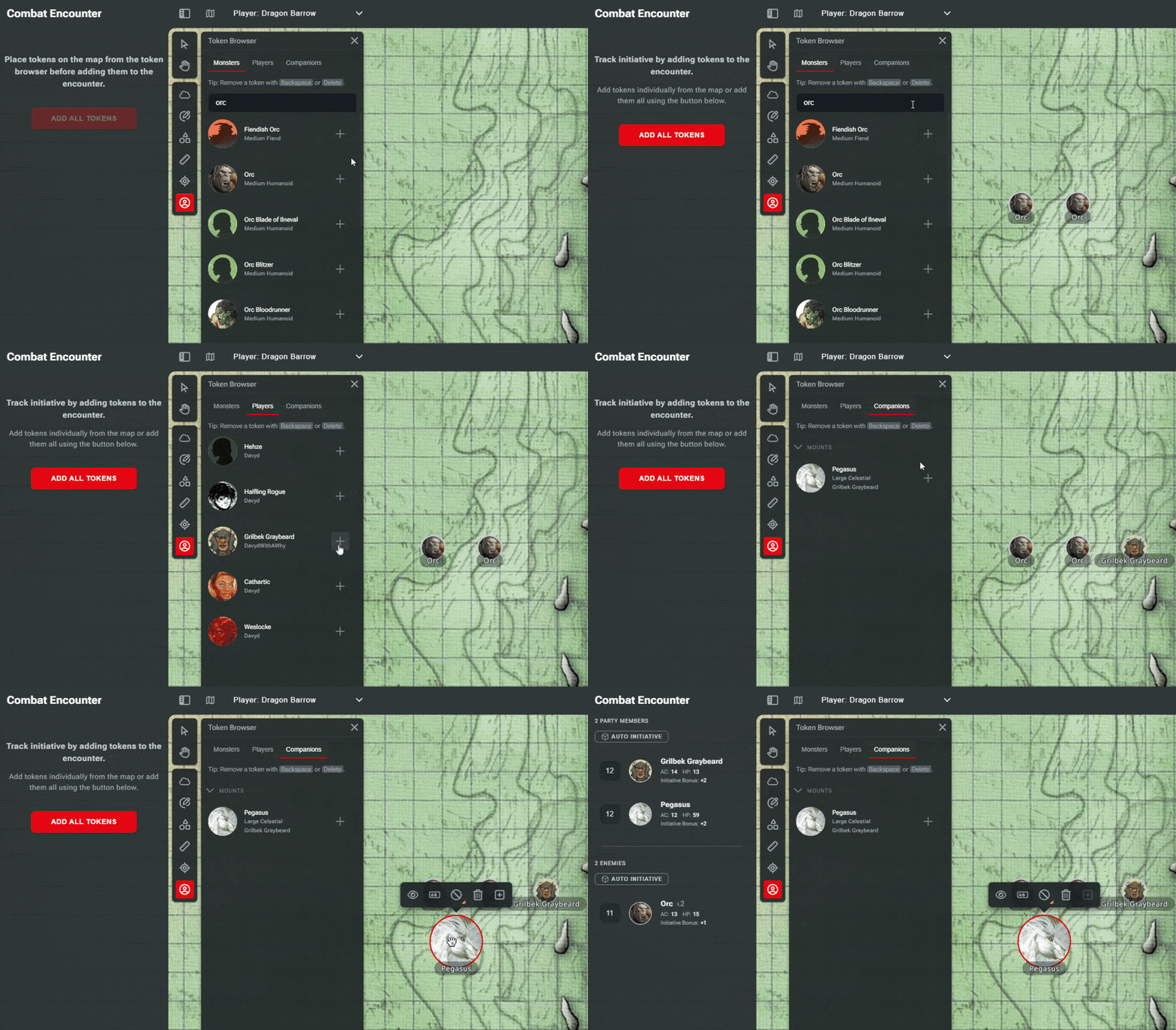
Once you have placed your tokens, you can select “Add All Tokens,” and the encounter will be populated.
You’ll see a list of all creature tokens on the map split into two groups by default: party members–including companions–at the top and enemies at the bottom. A third group for nonplayer characters will be displayed when a creature is allocated to that role.
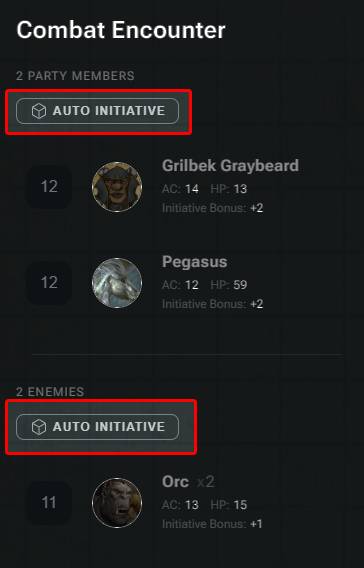
When a token is added to the encounter, its Initiative will automatically use the creature's Initiative score (10 + their Dexterity score.) However, you can click “Auto Initiative” for either party members or enemies to roll for Initiative. Alternatively, you can type in Initiative values manually.
Players Rolling for Initiative
Players can roll Initiative from their character sheets before combat begins. Results will appear both in the Combat Encounter sidebar and Game Log.
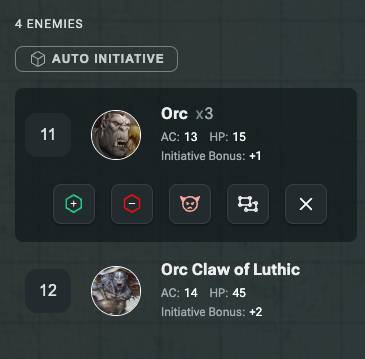
Selecting a creature in the Combat Encounter menu will give you a menu of options:
- Advantage. Applies a +5 to the Initiative score or Advantage on Initiative rolls.
- Disadvantage. Applies a -5 to the Initiative score or Disadvantage on Initiative rolls.
- Change Side. Gives three options to set the creature's role in the encounter: Make Party Member, Make Nonplayer Character, and Make Enemy.
- Ungroup. This option is only available for creatures with multiple tokens. It splits them out on the Combat Encounter menu so they can be managed individually.
- Remove from Encounter. Removes the creature from the Combat Encounter menu but doesn’t remove their token from the map.
At the bottom of the Combat Encounter menu, you’ll see a difficulty rating from Low to High. This is based on the encounter difficulty rating rules in the 2024 Dungeon Master's Guide and will adjust as you add and remove tokens from the encounter.
If you want to add more tokens to the map after you’ve clicked “Add All Tokens” and have them appear in the encounter, click on a token and click the [+] icon in the context menu. This will add the monster to the encounter.
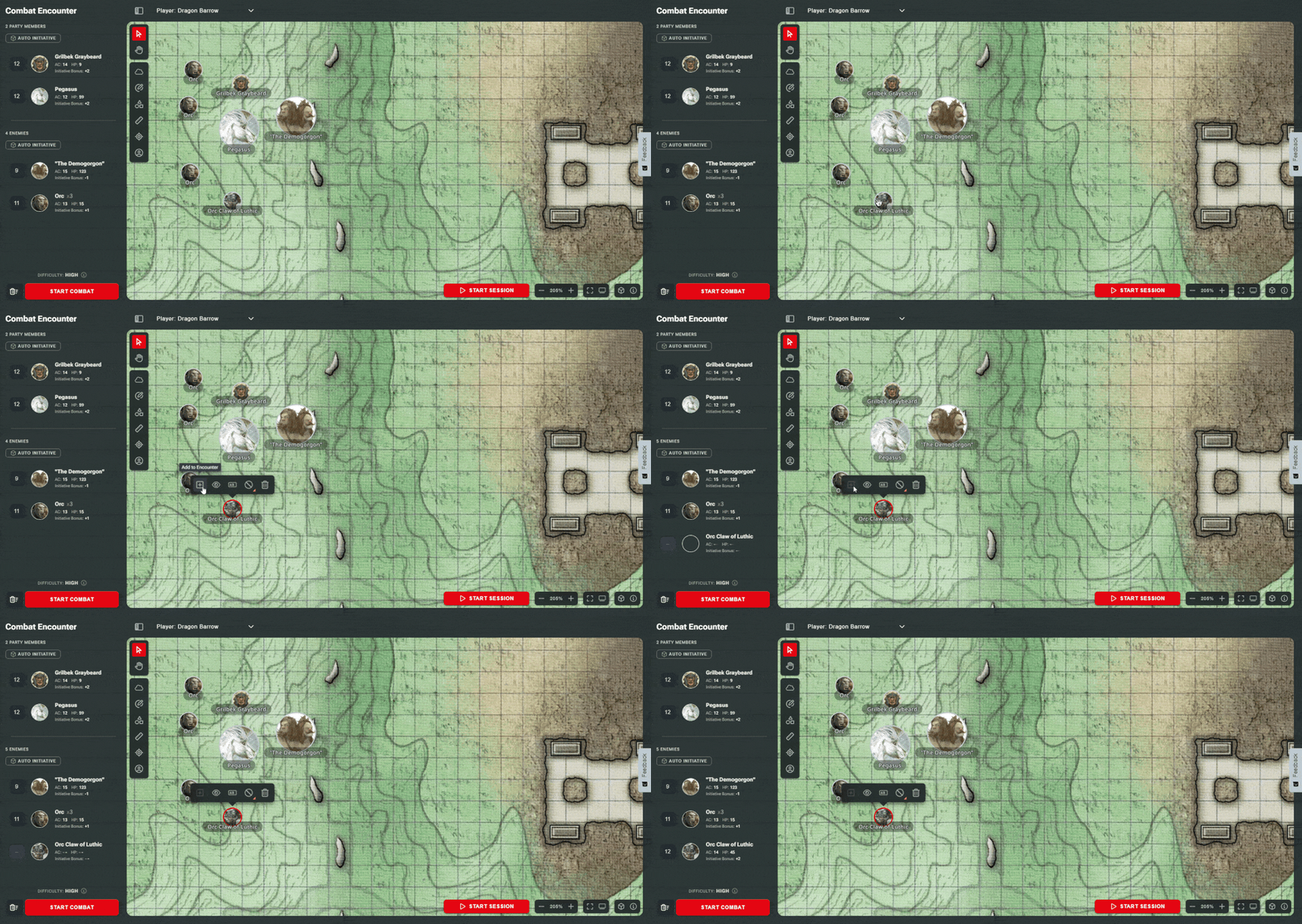
This option can be used with the Select feature to allow you to add multiple tokens at once.
Once you’re happy with your encounter, you can click “Start Combat” to begin tracking Initiative. Alternatively, if you wish to start over, you can click the trashcan icon to delete the encounter.
This will only clear the encounter and won’t remove tokens from the map.
Clicking “Start Combat” will take you to the Initiative Order menu. All tokens will be sorted by Initiative Order, and any duplicate monsters will be given a suffix to their name from A to Z, both in the Initiative Order and on the map.

You can advance through the turn order with the “Next” button, next to which you’ll see the current round and turn counts. If you wish to backtrack the turns, there is also an "undo" button to the left.
The Initiative Order will be displayed to your players as image flags along the top of the screen. Players can hover their cursor over monsters in the Initiative Order to see its name. If a token is currently hidden, it won't be visible from the player-facing Initiative order, and its hidden status will be indicated on the Dungeon Master view.
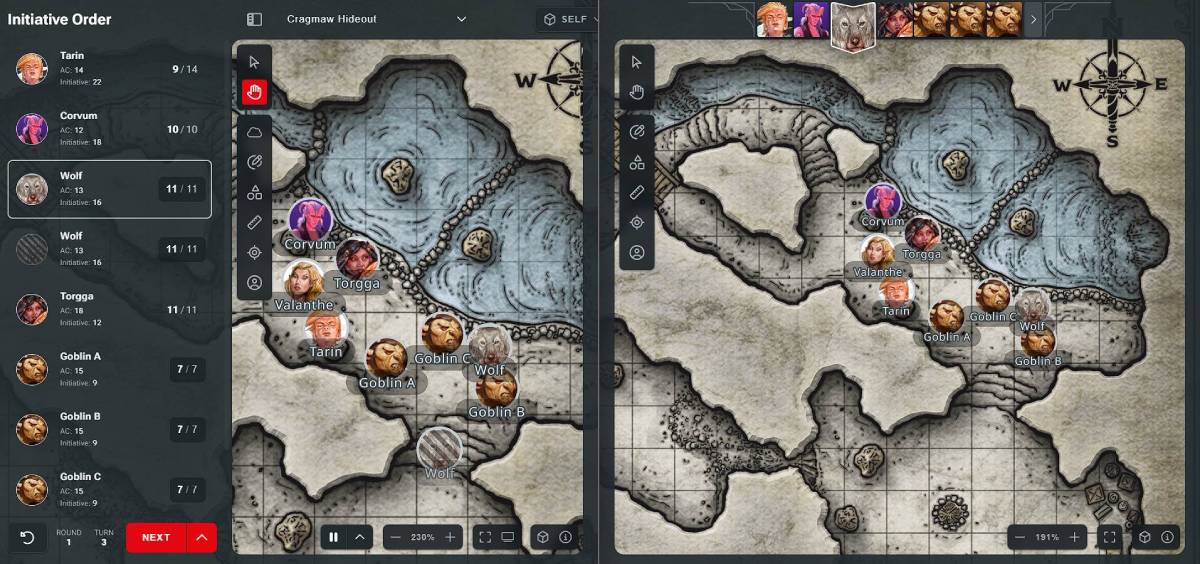
Advancing the Initiative to a hidden creature will leave the player-facing Initiative Order on the monster immediately prior, to not reveal the hidden creature. Additionally, hidden monsters will not be considered for renaming multiples of the same monster. This means if you have two of the same creature, but one of them is hidden, the other will not be renamed “monster B” until the second is revealed.

When a creature is defeated in combat, and you wish to remove it from the encounter, there are two ways you can do this. Clicking on the creature in the Initiative Order will give you a “Remove From Combat” button. This will not remove the token from the map, so it is useful if you want to mark where a downed enemy is, for example.
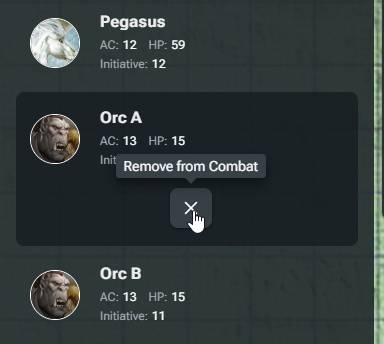
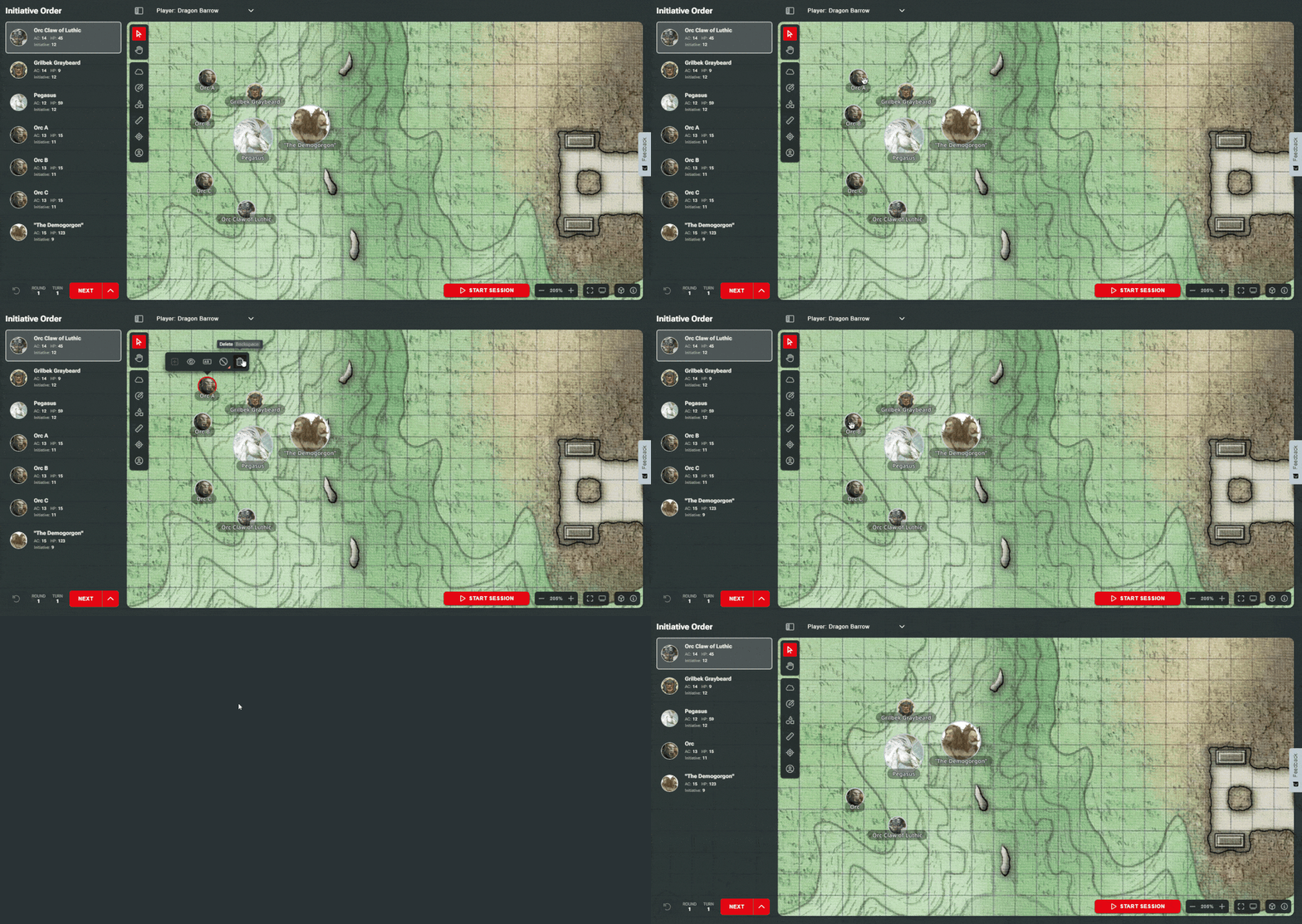
Alternatively, you can delete the token from the map. This will remove the token from both the map and the Initiative Order.
If you want to add a creature mid-combat, you can do so by adding an appropriate token to the map, selecting that token, and then selecting the [+] button to add it to the Initiative. You can also use the Select feature to add multiple tokens this way. This will place the creature or creatures in a Pending section of the Initiative Order, where you can roll for its Initiative. Then, once you’re happy, click “Add.”
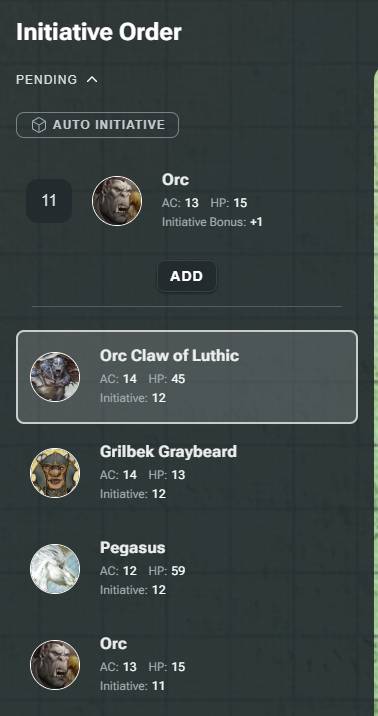
Selecting a pending creature will give you the option to toggle Advantage or Disadvantage on their Initiative or remove the creature.
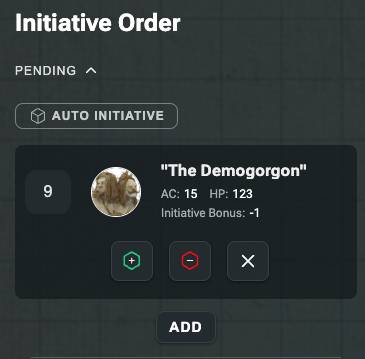
If there is already a token of this creature on the map, the existing creature will have “A” appended to its name in the Initiative Order, and on its token. The new Creature will have “B” appended to its name to help you differentiate. If there are already multiple tokens of the same sort on the map, the next appropriate letter will be added.
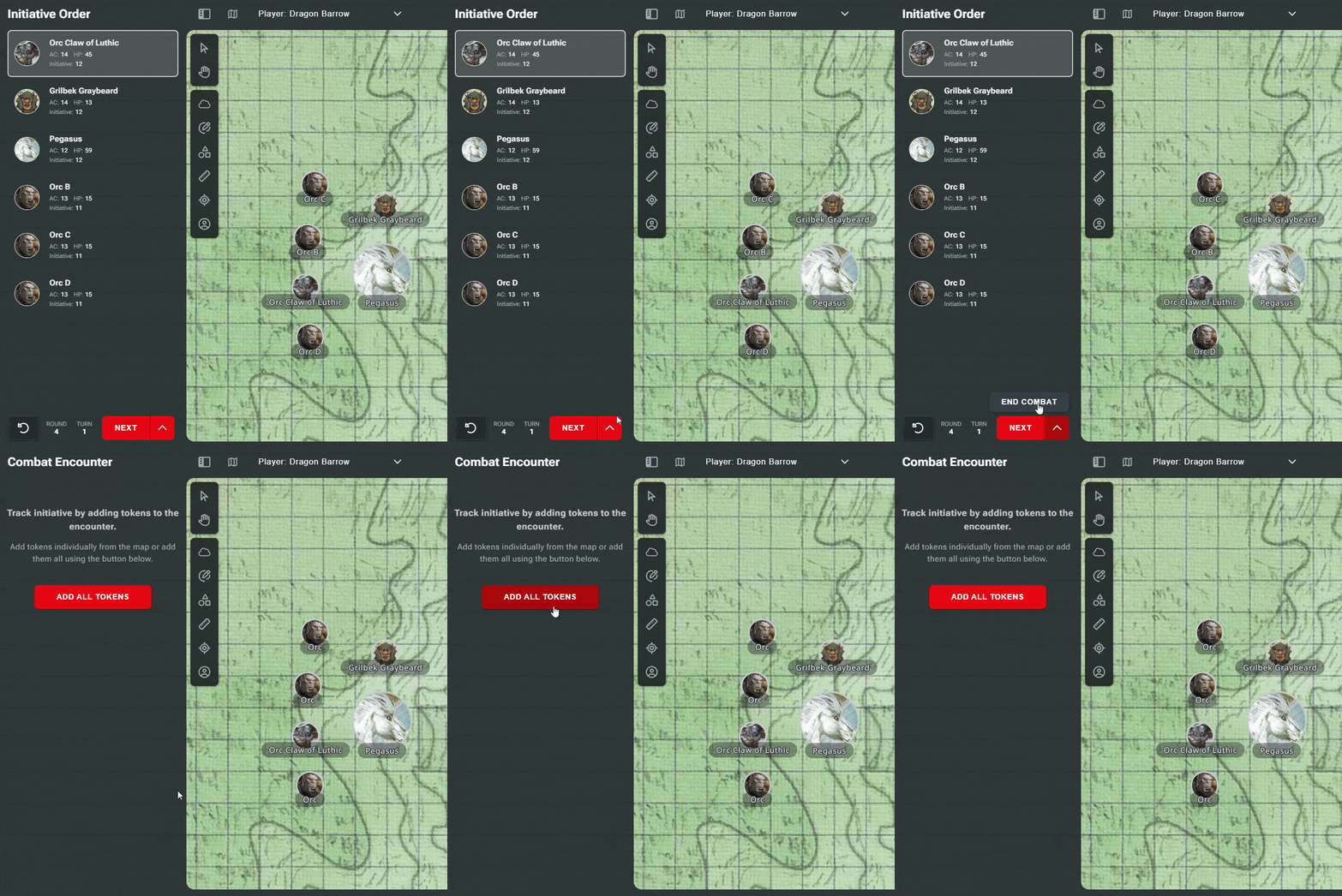
Once combat is over, you can click the up chevron next to the Next button to access the "End Combat" button.
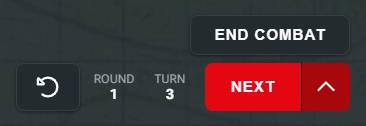
Clicking this will clear the Initiative Order and remove any letter suffixes added to duplicate monsters.
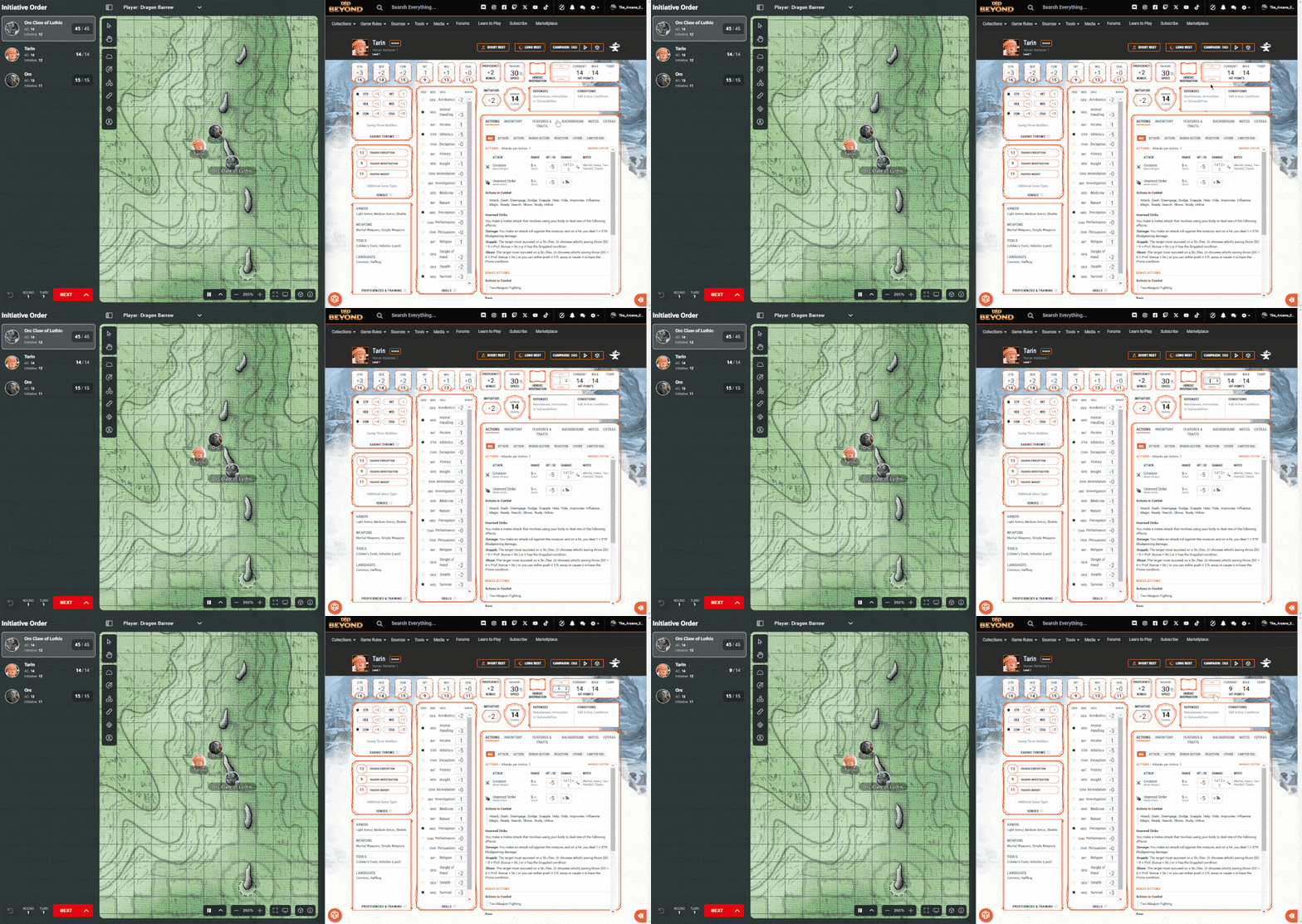
If a player changes their character's Hit Points from their character sheet, their Hit Points in the Combat Encounter menu will automatically update.
Tracking Monster Hit Points
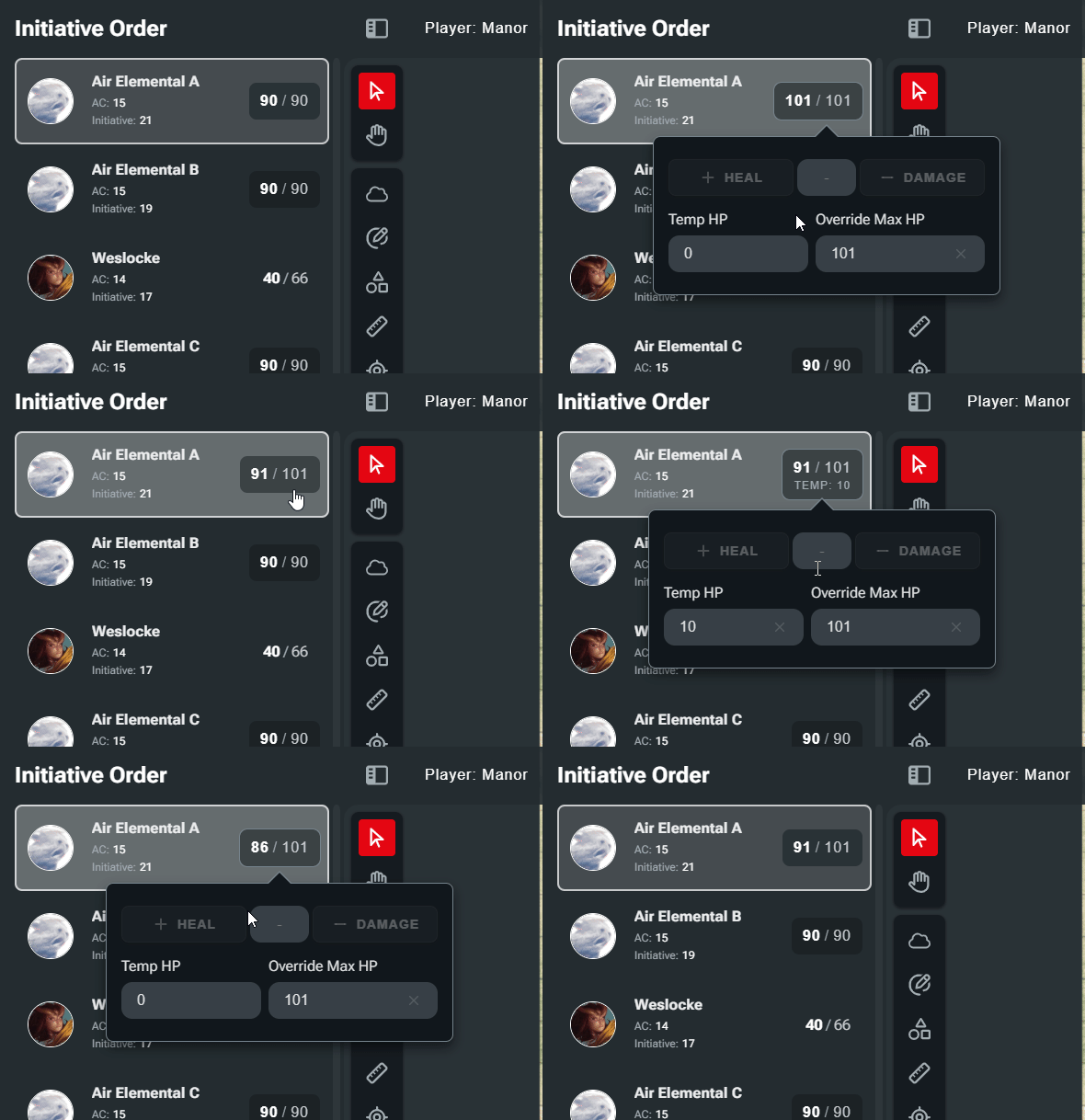
To modify a monster's Hit Points, click the button that displays their current Hit Points.
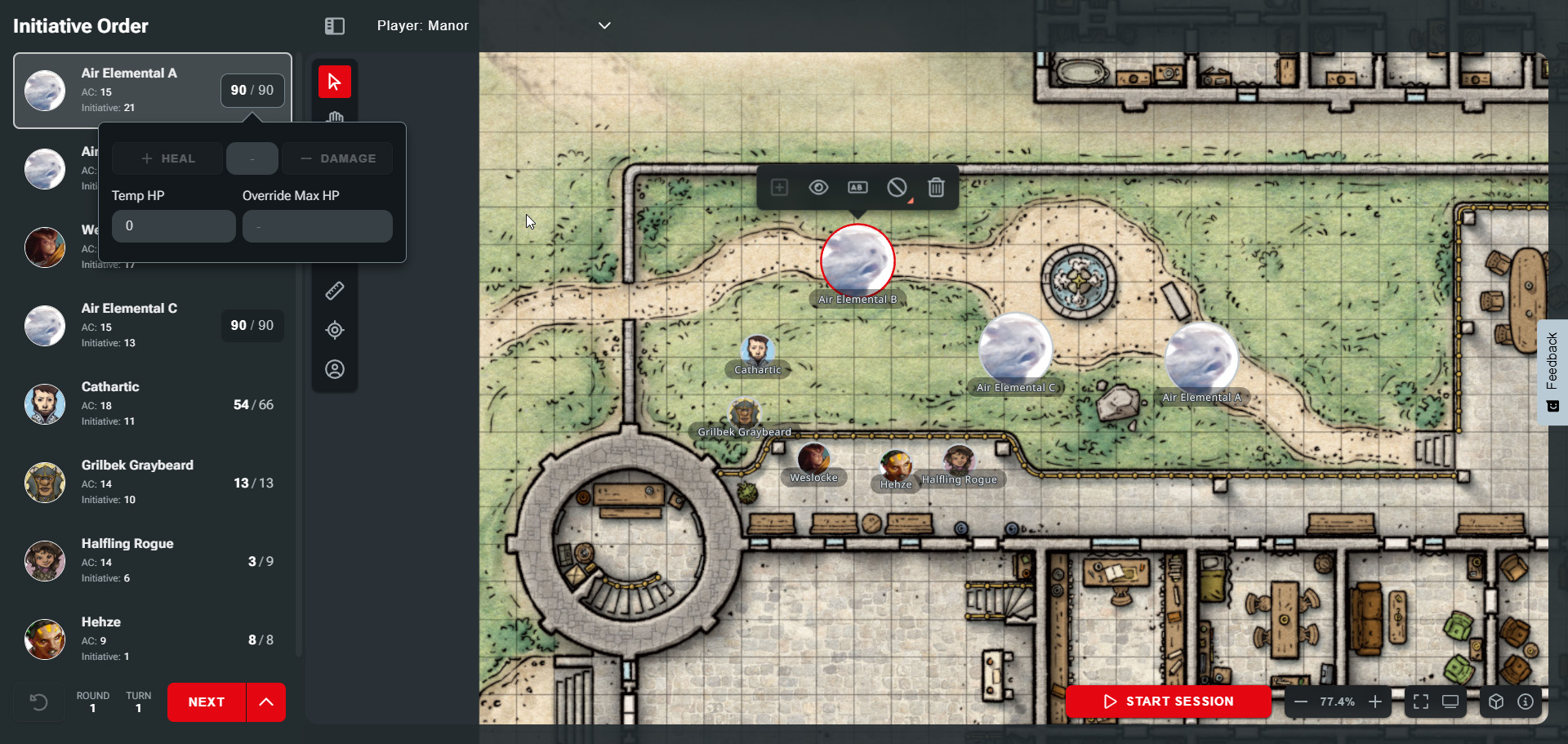
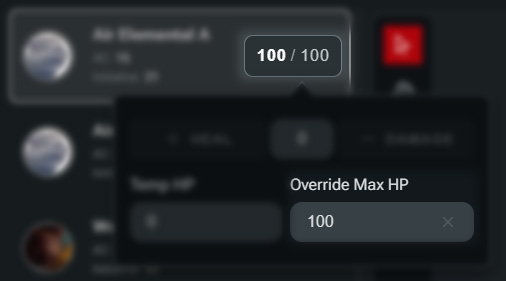
If you want to use a Hit Point maximum other than the creature's average, the Override Max HP option allows you to apply a custom Max HP amount. Enter the amount you wish to use in the text input box.
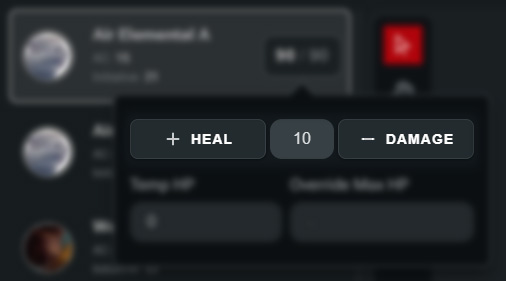
To adjust a monster’s Hit Points, from the Hit Point context menu, enter the amount you want to adjust their Hit Points by and click either "+ Heal" or "- Damage."
Temporary Hit Points can be added using the Temp HP input option.
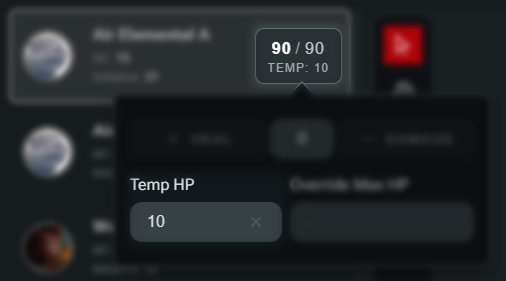
If damage is applied to a creature with Temporary Hit Points, that damage will be deducted from the Temporary Hit Points first. However, healing will only be applied to Hit Points. Entering a new value for Temp HP will replace any previous values.
Additionally you can access monster Hit Points and Temporary Hit Points directly from a monster's token. Selecting a token will display the context menu where its current HP will be displayed.
Clicking their HP will open a flyout menu where you can apply healing and damage, as well as apply Temporary HP and override their maximum HP.

Viewing Monster Stat Blocks
If you click a monster in the Initiative Order, next to the remove button, you’ll see an option to view the stat block within Maps. Additionally, there is an option to view the stat block in a new tab.
Rolling for Monsters
When you initially select a monster in the Initiative Order, you can roll any ability checks or saving throws, which is useful for making quick rolls. Clicking through to the full stat block, you can roll any of their attacks, damage, recharge rolls, or any other dice expressions they may have in their stat block.

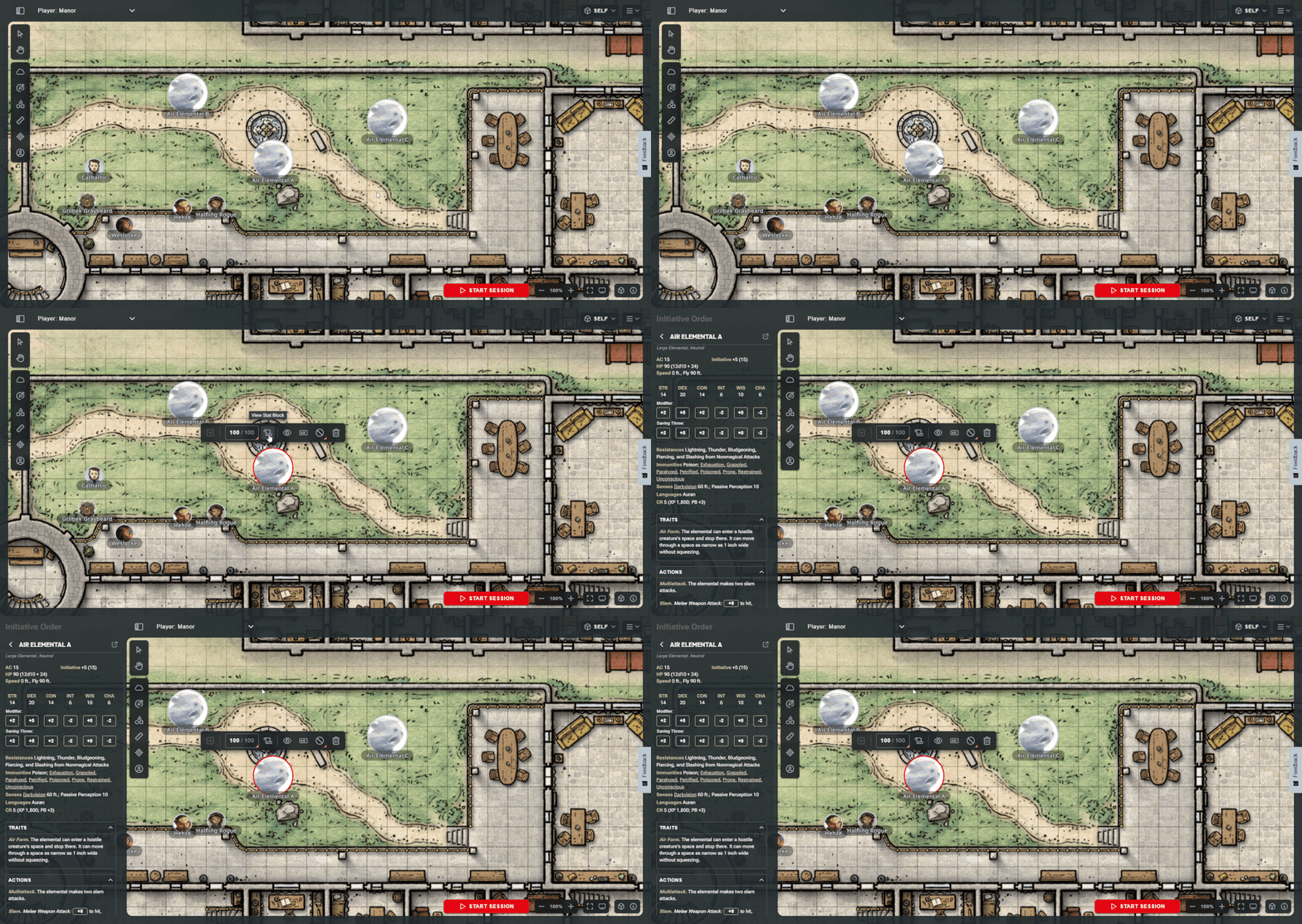
A monster's stat block can also be accessed directly from its token context menu. Click any monster token and then click the scroll button. This will open the monster's stat block in the sidebar.
Related to